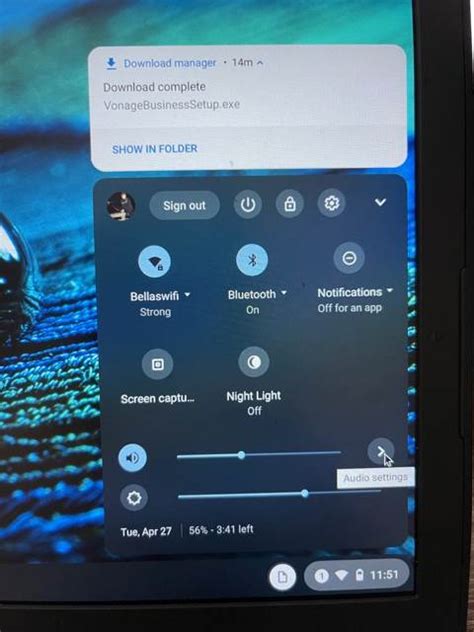
Chromebooks, renowned for their versatility and affordability, offer a wide range of audio customization options to enhance your listening experience. Whether you’re streaming music, attending virtual meetings, or watching movies, these settings empower you to optimize the sound quality for your specific needs.

Essential Audio Settings
1. Volume:
- Adjust the overall volume of your Chromebook using the volume keys on the keyboard or in the system tray.
- For precise control, use the “Sound” section in the Settings app to fine-tune the volume level.
2. Input and Output Devices:
- Select the input device (e.g., microphone) and output device (e.g., speakers, headphones) you want to use.
- If multiple devices are connected, the Settings app allows you to switch between them seamlessly.
3. Microphone Input Level:
- Adjust the sensitivity of the microphone to ensure your voice is adequately captured during video calls or recordings.
- Use the “Microphone Input Level” slider in the Sound settings to find the optimal level.
Advanced Audio Enhancements
1. Equalizer:
- Customize the sound frequency response using the Equalizer tool in the Sound settings.
- Adjust the sliders for bass, midrange, and treble to create a personalized sound profile that suits your preferences.
2. Sound Enhancements:
- Enhance the audio experience with various sound effects, such as:
- Bass Boost: Amplifies low frequencies for a fuller sound.
- Virtual Surround: Creates a simulated surround sound experience using stereo speakers.
3. Noise Cancellation:
- If you’re in a noisy environment, enable noise cancellation to reduce background noise during calls or recordings.
- This feature is available in the microphone settings of the Sound app.
Troubleshooting Common Audio Issues
1. No Sound:
- Check if the volume is turned up and the correct output device is selected.
- Ensure that your speakers or headphones are properly connected and powered.
2. Distorted Sound:
- Adjust the volume to a lower level to avoid overdriving the speakers.
- Try resetting the sound settings to their default values.
3. Microphone Not Working:
- Check if the microphone is enabled in the Sound settings.
- Grant microphone access to the apps that need it.
Additional Tips for Optimizing Audio
1. Use High-Quality Headphones:
- Invest in a pair of noise-canceling or open-back headphones to enhance your listening experience and minimize distractions.
2. Position Speakers Properly:
- Place your speakers at ear level and in a symmetrical configuration to create an optimal stereo field.
3. Soundproof Your Room:
- If possible, soundproof your listening space to reduce external noise and improve audio clarity.
Conclusion
By understanding and utilizing the comprehensive range of Chromebook audio settings, you can tailor your listening experience to perfection. Whether you’re a music aficionado, a conference call enthusiast, or a movie buff, these settings empower you to elevate your audio enjoyment and optimize your Chromebook’s functionality.